Sheru Bhai Portrait for Your Phone Screen
A 3:4 or 9:16 portrait for your phone screen
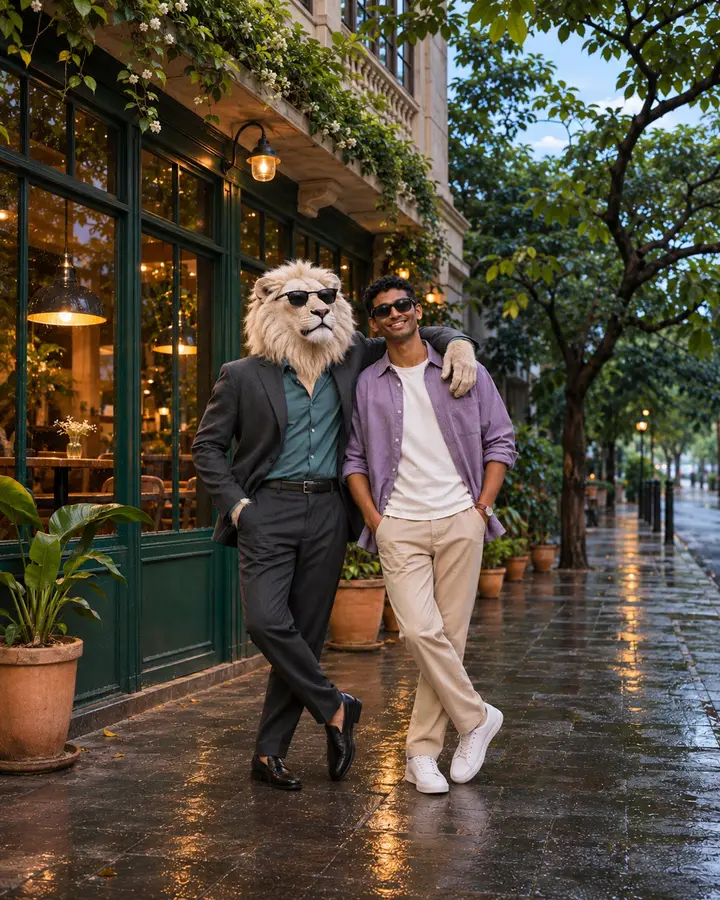
A Sheru Bhai portrait puts your recognizable human face beside a separate fictional lion companion. This page explains how to use that creative image on your phone without confusing a portrait with a ready-sized wallpaper. Every current preset produces one vertical 3:4 or 9:16 still image. A personalized generation costs $1.99 USD, paid once, with no subscription or account required. Choose Portrait 3:4 or Story / Reel 9:16 before generating. Automatic screen fitting, animated backgrounds and free finished-wallpaper packs are not included.
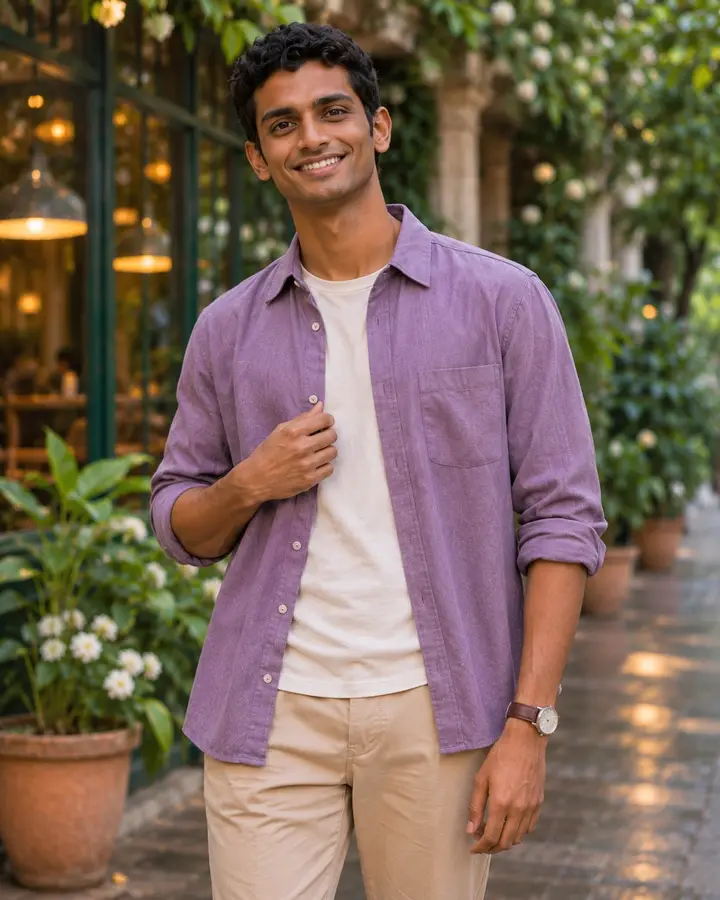
You can preview all available scenes before deciding whether to generate. The preview shows the template composition, clothing and lion; it is not your finished result. Your uploaded photograph supplies the identity of the human in that scene. Because two subjects share the frame, a tall phone display may crop one of them. Read the framing guidance first if keeping both faces visible matters more to you than filling every part of the screen.
Choose a Sheru Bhai scene that survives the crop
Garden White Lion uses daylight, greenery and a relaxed shoulder pose. Twilight Café combines a white lion, lavender streetwear and warm windows after rain. Chhath Puja uses sunset river water, a white lion, a red-and-yellow sari and a jointly held bamboo offering basket. Ivory Royal Palace features embroidered clothing and lakeside architecture. Royal Sofa uses a seated pose in a study. These are visual choices, not different export sizes.
Look at the distance between the two faces in each preview. A close shoulder pose may be easier to frame than a scene with subjects standing farther apart, although no template guarantees a perfect phone crop. Check where the clock, notification cards and app icons will sit. A detailed palace background can look attractive in a photo while making icons harder to read. Your home screen and lock screen can use different images if one composition does not suit both.
Crop a 3:4 or 9:16 portrait for a taller phone display
Save the original downloaded image before editing, then work on a copy. Choose Portrait 3:4 for a portrait composition or Story / Reel 9:16 for a taller frame before paying. Cropping an existing portrait narrower removes content from the sides and can cut into the lion or the human.
Open the copy in your photo editor and try its crop tool. Choose 9:16 only when it helps your intended display; phone screens do not all share that ratio. Move the crop rectangle sideways until both faces are visible. Inspect heads, shoulders and hands before saving. If the composition feels cramped, cancel the crop instead of repeatedly zooming. Keeping the complete 3:4 or 9:16 image and placing it on a taller canvas is another option when your editor supports backgrounds or margins.
Adding a plain or softly colored margin preserves the subjects but changes the look: the picture will not fill the taller canvas edge to edge. This website does not perform that canvas extension for you. Avoid stretching the original to a taller ratio because faces and bodies will become distorted. Use the wallpaper preview on your own device as the final check. Different system versions can enlarge, blur or reposition an image in different ways.
Set your Sheru Bhai portrait on iPhone
Download the finished image from your private order page and save it to Photos. Open Settings, choose Wallpaper, then Add New Wallpaper and select Photos. Pick the downloaded portrait or your edited copy. In the preview, adjust the photo position and crop using the available controls. Keep both faces away from the clock and widgets. These steps follow Apple’s wallpaper workflow; control names and available appearance options can vary with the version installed on your iPhone.
When the preview looks right, add the wallpaper and choose the wallpaper-pair option or customize the home screen separately. Check an actual home-screen page with your usual icons before deciding the image works there. A busy background can make small labels difficult to read. If the lock-screen preview crops away a subject, return to your original or a version with margins. Do not assume the generator can repair the crop after payment: its current output remains a 3:4 or 9:16 portrait.
Set your Sheru Bhai portrait on Android
Save the downloaded image to your phone before opening wallpaper settings. On a Google Pixel, touch and hold an empty area of the home screen, open Wallpaper & style, and choose the option to change the wallpaper using your photos. Select the saved portrait, adjust its position, then choose the home screen, lock screen or both when those choices appear. Google’s Pixel instructions are linked below. Samsung and other Android devices may use different menus or a Gallery shortcut.
Always review the crop on the actual device rather than copying a size from another phone. Some launchers show more of the background when you move between home-screen pages. Other devices apply a different lock-screen crop or place the clock over a face. If the image is being enlarged too much, try a copy with extra margins. If you cannot find the same menu labels, use your manufacturer’s wallpaper instructions for the model and software version you own.
Prepare a square DP without losing the original
A display picture, often shortened to DP, is a separate use from a phone wallpaper. Many services show profile photos inside a circular mask, even when the uploaded file is square. Make a 1:1 copy in your photo editor and keep the faces away from its edges. A full-body two-subject composition will make each face look smaller in a tiny profile icon. Consider whether a closer crop still communicates the scene before using it as your main profile picture.
There is no universal DP pixel size that fits every app’s upload rules. Use the current requirements of the service where you plan to upload and inspect its own preview. Our generator supplies a 3:4 or 9:16 image, not a separate square export. You can make a square copy for a profile and keep the untouched portrait for a social post. Avoid saving the same copy repeatedly at low quality, and download your completed image while your private order access is still available.
Save, compare and keep a reusable original
Before applying a wallpaper, compare your edited copy with the original at the same viewing size. Check that the crop has not removed the edge of a face or created an awkward cut through a hand. Then preview the image with your usual clock and notifications visible. A composition that looks balanced in the gallery can feel crowded on the lock screen. If your device offers a fit or zoom control, try it before making another edited file. The best framing is the one that works with your actual screen layout.
Keep separate copies for the lock screen, home screen and profile picture rather than overwriting the download. Give each copy a simple name so you can return to it after changing your phone settings. Downloading the finished image is especially useful because private order access expires after thirty days. If your result has a serious defect, contact support with the order number and a description before making another purchase. The size selected before checkout is saved with your order, and browsing this guide does not promise that a future template update will change an existing order.
Phone portrait FAQ
How do I set the portrait as my iPhone wallpaper?
Save it to Photos, open Settings → Wallpaper → Add New Wallpaper → Photos, select the image and review the crop. Add it when both faces are positioned clearly. The supplied image is 3:4 or 9:16, so the wallpaper preview may crop it.
How do I set the portrait as my Android wallpaper?
Save the image, then open your phone’s wallpaper settings. On Pixel, start with a long press on the home screen and Wallpaper & style. Choose your photo, preview the framing and apply it. Other manufacturers may use different menu labels.
What size should I use for a Sheru Bhai DP?
Make a square 1:1 copy and leave room around the faces for circular profile masks. Check the destination app for its current pixel and file requirements. Our original download is a 3:4 or 9:16 portrait; no separate DP-sized file is included.
Can I use my portrait commercially?
Payment is for image generation and does not grant an exclusive character license or guarantee rights in every element. Our Terms permit downloading and sharing subject to applicable law and third-party rights. Review those terms and your rights in the uploaded photo before any commercial use; this page does not promise unrestricted commercial licensing.
How often are the portrait scenes updated?
There is no fixed update schedule. This page describes the available scenes. Check the live generator for the current selection before paying; a future update or a new export format is not included as a promise with an order.
Are the previews free downloadable wallpapers?
No. The previews let you inspect the available templates. One personalized image costs $1.99 USD. The current product does not offer a free wallpaper pack or automatic screen fitting.
What if my portrait does not fit the screen?
Keep the original, try a different crop on a copy, or use an editor to place the complete image on a taller canvas with margins. Do not stretch faces to fit. Screen fit is controlled by your device and editor, rather than automatic screen fitting in this generator.
Device instructions: Apple iPhone wallpaper guide and Google Pixel wallpaper guide. Menus may vary by device and software version.
Read our Terms of Service and Refund Policy before ordering.